How to set up a B2B Google Ads campaign from scratch in 2026
Setting up a Google Ads campaign for B2B software in 2026 requires more configuration than it did five years ago. The defaults Google encourages are often wrong for B2B SaaS. Here's the complete setup — campaign structure, keyword selection, audience setup, bidding, and the five settings to change from default.
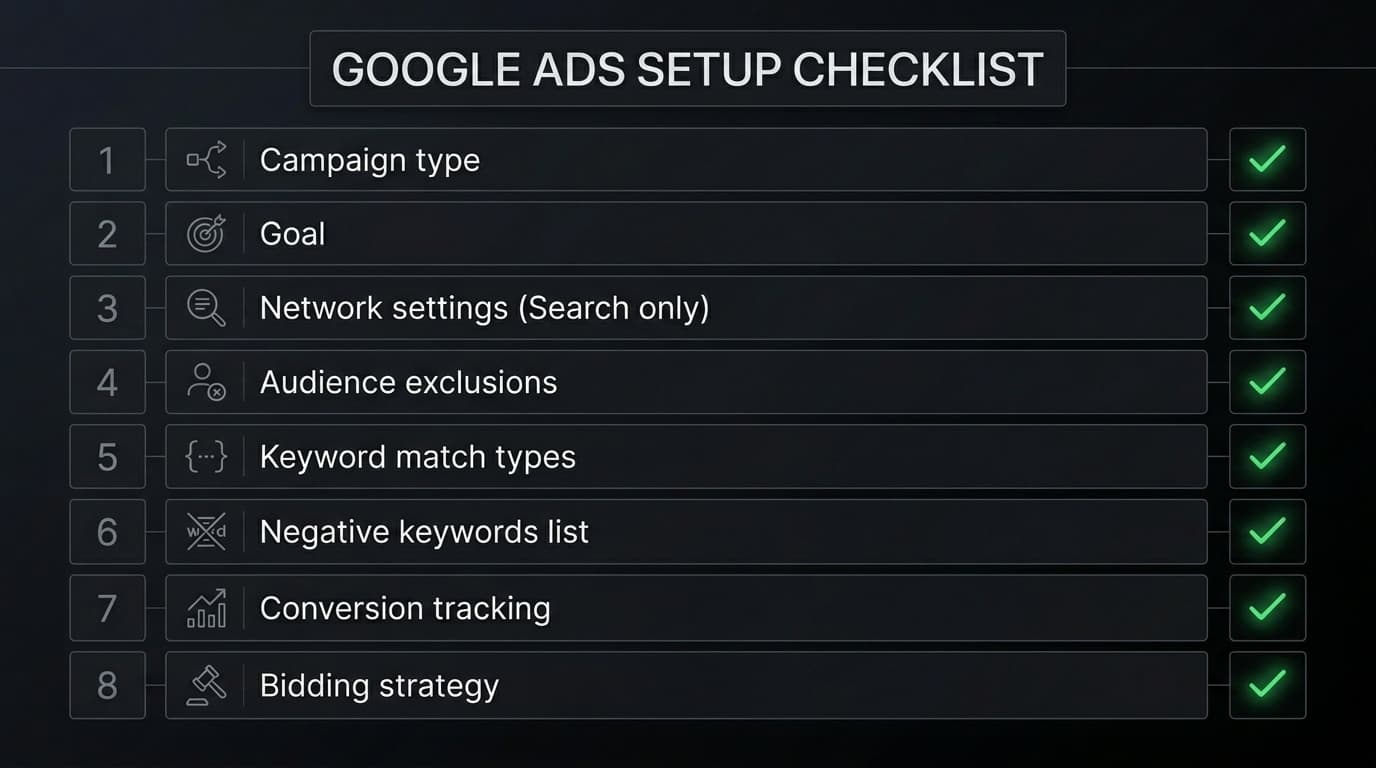
Google Ads default campaign settings are optimised for Google's revenue, not for your conversions. Several defaults that Google pre-selects will actively work against a B2B SaaS campaign. The setup below covers every step from account creation to first impression — and specifically calls out the five settings you must change from default before spending a dollar.
Step 1 — Campaign type and goal settings
Create a new campaign → Select "Search" as campaign type (not Performance Max, not Display). For goal, select "Website Visits" or "Create a campaign without a goal's guidance" — choosing a predefined goal like "Leads" triggers settings you don't have control over. Set your campaign name clearly (e.g., "B2B SaaS — Demo Requests — Search"). Set your daily budget conservatively: $30–50/day minimum for meaningful data, $100/day for faster learning. Set start date to today, no end date.
Step 2 — The five default settings to change immediately
1. Uncheck "Display Network" — Google defaults to showing your Search ads on Display too, which means banner placements. Uncheck it. Search-only campaigns for B2B. 2. Uncheck "Search Partners" — Google's search partner network includes smaller search engines and comparison sites. Uncheck and re-evaluate only if your Search-only results are strong. 3. Disable "Optimized ad rotation" — set to "Do not optimize" so all ad variations show equally, giving you clean A/B data. 4. Turn off "Automatically created assets" — Google will add its own headlines pulled from your website. Turn this off and control all ad copy manually. 5. Set location targeting to "People in or regularly in your targeted locations" — not "People interested in your targeted locations," which includes tourists and researchers.
Step 3 — Keyword and match type setup
Start with 10–20 tightly related keywords in phrase match. Organise keywords into tightly themed ad groups — one ad group per theme (e.g., "AI SDR tools," "sales automation software," "CRM for startups" as separate ad groups, not mixed together). Each ad group gets a dedicated landing page matching its theme. Add your initial negative keyword list before the campaign launches — at minimum: jobs, salary, hiring, free, student, tutorial, course.
Step 4 — Audience configuration
Add all relevant in-market audiences in Observation mode. Add audience exclusions: job-seeker segments, lower income brackets (for US campaigns). Set demographic adjustments: observe by age and household income for the first 30 days before making exclusions. Don't add positive bid adjustments yet — wait for data.
Step 5 — Bidding and tracking
Set bidding to Manual CPC with Enhanced CPC for the first 30 days. Set a maximum CPC of $5–15 depending on your industry competitiveness (check the Keyword Planner for suggested bids). Confirm conversion tracking is live and recording before launching. After 30–50 conversions, evaluate switching to Maximize Conversions. Review Search Terms report after the first 7 days and add new negative keywords. Review by ad group performance after 30 days and pause underperforming ad groups. Also watch for spend creep — budget recommendations from Google that inflate spend without proportional conversion gains.